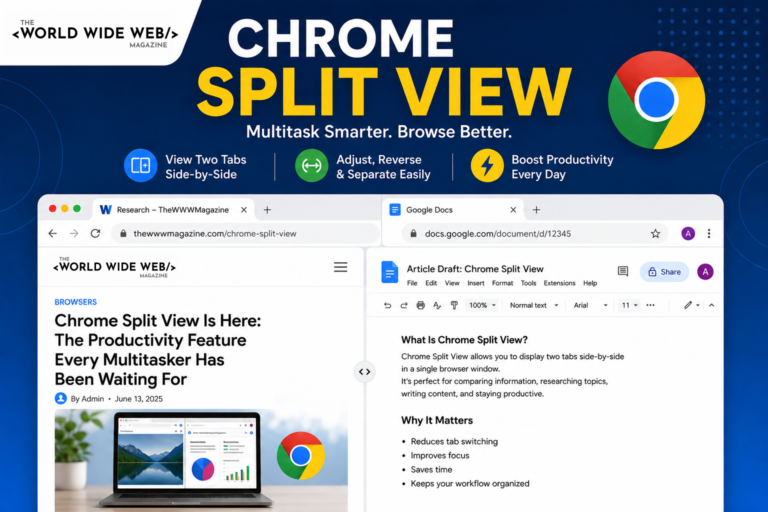
If you’re someone who constantly switches between tabs while working, researching, shopping, or studying, Google Chrome’s new Split View feature may be one of the most useful browser updates in years.
Google has been focusing heavily on browser productivity lately. Following the introduction of Chrome Vertical Tabs, which help users organize large tab collections, Split View aims to reduce tab switching by displaying two websites side-by-side.
Instead of juggling multiple browser windows or endlessly switching between tabs, Chrome now lets users view two websites side-by-side within a single browser window. The result is a cleaner, more organized browsing experience that can significantly improve productivity. Google officially introduced Split View as part of its ongoing effort to make Chrome a more powerful productivity platform.
In this article, we’ll explore what Chrome Split View is, how it works, and why it might become your favorite browser feature.
What Is Chrome Split View?
Chrome Split View allows you to display two tabs side-by-side inside the same browser window.
Traditionally, users had to manually resize browser windows or rely on operating system features like Windows Snap Layouts or macOS Split Screen. Chrome’s new implementation integrates the experience directly into the browser, making multitasking much more seamless.
The feature is especially useful for:
- Comparing products while shopping
- Writing content while referencing research
- Filling out forms while viewing instructions
- Monitoring dashboards and reports simultaneously
- Studying from one website while taking notes in another
- Managing spreadsheets and documentation side-by-side
Why Chrome Split View Matters
Most knowledge workers spend their day switching between tabs.
While this may seem harmless, research has repeatedly shown that context switching reduces focus and productivity. Split View reduces that friction by keeping two related pages visible at the same time.
Instead of:
- Opening multiple windows
- Resizing them manually
- Constantly switching focus
You can simply pair two tabs and work within a single browser environment. Google describes the feature as a way to reduce “back-and-forth tab fatigue” and create a more streamlined workflow.
How to Use Chrome Split View
Using Split View is surprisingly simple.
Method 1: Create a New Split View
- Open a tab in Chrome.
- Right-click the tab.
- Select Add Tab to New Split View.
- Choose another tab or enter a new website URL.
- Chrome automatically displays both pages side-by-side.
Method 2: Combine Existing Tabs
If you already have two websites open:
- Right-click one of the tabs.
- Select New Split View with Current Tab.
- Chrome merges both tabs into a single Split View workspace.
If you don’t see the Split View option yet, Google provides detailed instructions and rollout information in its official Chrome documentation.
Key Features of Chrome Split View
1. Adjustable Layout
Users can drag the divider between the two pages to allocate more space to the website they’re actively using.
This flexibility is particularly useful when one page contains dense content while the other acts as a reference source.
2. Reverse Views
Need the websites swapped?
Chrome allows users to quickly reverse the left and right panes without recreating the split layout.
3. Separate Views
When you’re finished multitasking, you can separate the combined tabs and return to standard browsing with a single click.
4. Cleaner Than Multiple Windows
Unlike operating system-level split-screen solutions, Chrome’s implementation keeps everything inside one browser window.
That means:
- One toolbar
- One bookmarks bar
- One extension area
- Less visual clutter
Many users find it cleaner and more efficient than managing multiple browser windows.
Best Use Cases for Chrome Split View
Content Creation
Writers can research on one side while drafting articles on the other.
Online Shopping
Compare products, prices, reviews, and specifications without switching tabs.
Financial Analysis
View reports and dashboards side-by-side while updating spreadsheets.
Software Development
Keep documentation visible while coding in browser-based development environments.
Education
Students can watch lessons, read reference material, and take notes simultaneously.
Chrome vs Other Browsers
Google isn’t the first browser company to introduce split-screen browsing.
Several modern browsers have offered similar functionality:
- Microsoft Edge
- Vivaldi
- Opera GX
- Arc Browser
- Zen Browser
However, Chrome’s implementation is significant because Chrome remains the world’s most widely used browser. Bringing Split View directly into Chrome makes the feature accessible to hundreds of millions of users without requiring browser extensions or third-party software.
Is Chrome Split View Available Now?
Yes. Google has begun rolling out Split View to Chrome users as part of recent browser updates. Some earlier versions required enabling experimental flags, but the feature is increasingly becoming available as a native browser capability.
If you don’t see the option:
- Open Chrome Settings.
- Navigate to About Chrome.
- Update to the latest version.
- Restart your browser.
After updating, right-click any tab to check whether the Split View option appears.
The Future of Browser Productivity
Modern browsers are evolving from simple website viewers into full productivity platforms.
Recent Chrome updates have introduced features such as PDF annotations, Google Drive integration, AI-powered assistance, and now Split View. Together, these improvements suggest Google is positioning Chrome as a complete workspace rather than just a browser.
For professionals who spend most of their day online, these small workflow improvements can add up to significant time savings.
Final Thoughts
Chrome Split View may seem like a simple feature, but it addresses one of the most common frustrations of modern web browsing: managing too many tabs.
Whether you’re a student, developer, researcher, content creator, or business professional, being able to view two websites simultaneously inside a single browser window can make multitasking faster, cleaner, and less distracting.
If you haven’t tried Chrome Split View yet, update your browser and give it a spin. You may find yourself wondering how you ever worked without it.